
No More 2am Investigations: A Hands-On Look at AWS DevOps Agent

AWS DevOps Agent was announced by AWS at re:Invent 2025, and became generally available in March 2026. I will introduce AWS DevOps Agent and walk you through how it works, following the hands-on test provided by AWS.
What is AWS DevOps Agent?
AWS DevOps Agent is an AI-powered, always-available agent that spans release management and production operations, from reviewing release readiness and release testing to investigating and preventing operational issues across AWS, multicloud, and on-premises environments.

AWS DevOps Agent helps review software changes for production risks while investigating incidents and identify operational improvements as an experienced DevOps engineer.In short, it automatically detects incidents, investigates issues, finds the root cause, and recommends prevention steps.
When Should You Use It?
This service is particularly useful for operations teams and on-call engineers.
Imagine a system incident happens at 2am. Traditionally, on-call engineers have to start investigating from scratch to find the root cause. With AWS DevOps Agent, it handles the initial response, finds the root cause, and suggests solutions - so you don't have to investigate manually or stay on standby through the night.
Note: DevOps Agent does not take actions on its own - you still need to make the final decisions to resolve incidents.
Hands-On Test
Let's see how AWS DevOps Agent works.
The scenario is: CPU usage exceeds 70% on an EC2 instance, triggering a CloudWatch alarm - then we investigate using DevOps Agent.
I will follow the official hands-on guide provided by AWS.
Creating an Agent Space
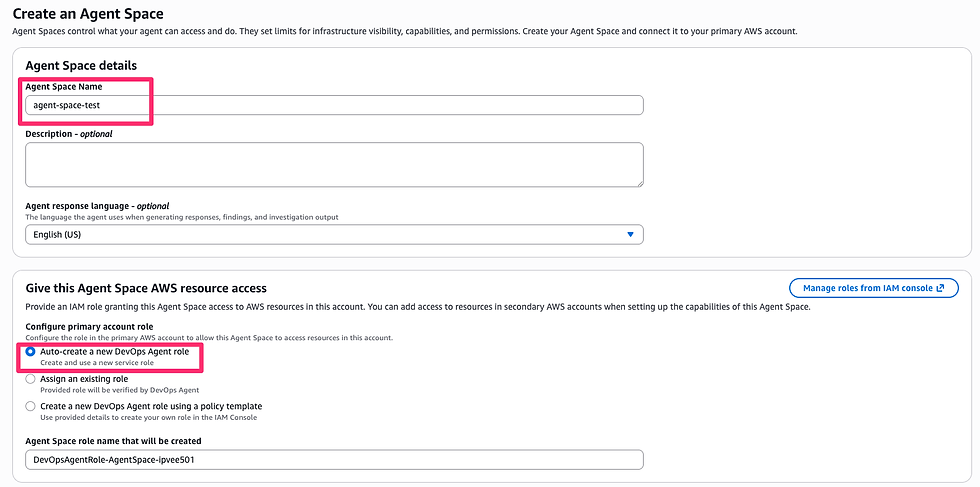
First, we need to create an Agent Space.
An Agent Space defines the tools and infrastructure that DevOps Agent can access.
Choose Create Agent Space
Enter a name for your Agent Space in the Name field
In the Give this Agent Space AWS resources access section, select one of the following options:
Option 1: Auto-create a new AWS DevOps Agent role (recommended)
Option 2: Assign an existing role
Option 3: Create a new AWS DevOps Agent role using a policy template
In the Enable web app section, select one of the following options:
Option 1: Auto-create a new AWS DevOps Agent role (recommended)
Option 2: Assign an existing role
Option 3: Create a new AWS DevOps Agent role using a policy template
Once sections are filled out, choose Create

Once configured, the Operator access button will appear on the Agent Space details page.

Deploy CloudFormation stack for EC2 test
Next, I will create test resources using CloudFormation. AWS provides a CloudFormation template to create them.
Go to CloudFormation console
Choose Create stack > With new resources (standard)
Select Upload a template file and Choose file

Choose Next
Fill out each field
Stack name: AWS-DevOpsAgent-EC2-Test
MyIP: Leave as default 0.0.0.0/0 (you can secure this later if needed)
SubnetId: Select a subnet within the VPC you chose
VpcId: Select an existing VPC from the dropdown
Stack creation takes 3-5 minutes. Once complete, the stack status changes from CREATE_IN_PROGRESS to CREATE_COMPLETE, and the instance will be running.
Wait for automatic test execution
AWS documentation says,
The CPU stress test will automatically start 5 minutes after instance launch
No manual intervention required - just wait, the test runs completely in the background
The stress test started automatically in my environment, however CPU usage didn't go up over 70%. So the CloudWatch status didn't change to ALARM. In response, I connected to the EC2 instance using Session Manager and ran the command manually.
sh-5.2$ sudo su -
[root@ip-172-31-28-216 ~]#
[root@ip-172-31-28-216 ~]# cd /home/ec2-user/
[root@ip-172-31-28-216 ec2-user]# ./cpu-stress-test.sh
Starting AWS DevOpsAgent CPU Stress Test
Time: Fri Jul 24 18:35:58 UTC 2026
Instance:

CPU Cores: 2

Starting stress test (5 minutes)...
This will generate >70% CPU usage to trigger CloudWatch alarm

Starting CPU load processes...
Started CPU load process 1 (PID: 26060)
Started CPU load process 2 (PID: 26061)

CPU load processes started for 5 minutes
Check CloudWatch for alarm trigger in 3-5 minutes
A few minutes later, the CloudWatch alarm status changed to ALARM.

Investigate the root cause using DevOps Agent
Let's see how DevOps Agent works.
Go to DevOps Agent console
Choose the agent space and click Launch web app in the top right corner
Choose Incidents

In the Start an investigation fields, Choose Latest alarm

A pop-up appears
Investigation details: Leave default
Investigation starting point: Enter the alarm name (AWS-DevOpsAgent-EC2-CPU-Test)

Click Start investigating...
After DevOps Agent completed its investigation, the Investigation Timeline and root cause were displayed.
Root causes
CPU spike was a deliberate stress/beta test on a short-lived instance

CONFIRMED: The CPU spike was a deliberate beta test. Operator XXXX created CloudFormation stack 'AWS-DevOpsAgent-EC2-Test' at 18:21:20Z (t3.micro i-001263a5c5e4XXXXX + CPU alarm), opened an interactive SSM Session Manager shell at 18:34:05Z, and ran an on-instance CPU-stress workload that peaked at 18:35 (avg 74.27%/max 100%), tripping the alarm at 18:40:39Z. The exact stress command is not in CloudTrail (interactive SSM session data is streamed over the data channel, not logged as management events). Instance later terminated (~20:20Z, teardown not captured in CloudTrail).
The Investigation Timeline shows a detailed breakdown of what happened and when - very helpful for understanding the full sequence of events. The Investigation Summary covers the impact and root cause, which could also serve as a report to share with customers.
AWS DevOps Agent does not take actions to resolve issues on its own, so your team still needs to make the final decisions. Even so, it significantly reduces the investigation burden - you no longer have to start from scratch.
If you want to automate investigations, you can integrate DevOps Agent with Lambda and EventBridge to trigger them automatically.
If your team deals with system incidents, AWS DevOps Agent is worth trying out.


Comments